
RSVP & tickets
Browsing events and registering — whether free RSVP or paid ticket purchase.
Finding events
The nonprofit's website typically has an Events page in the main navigation:
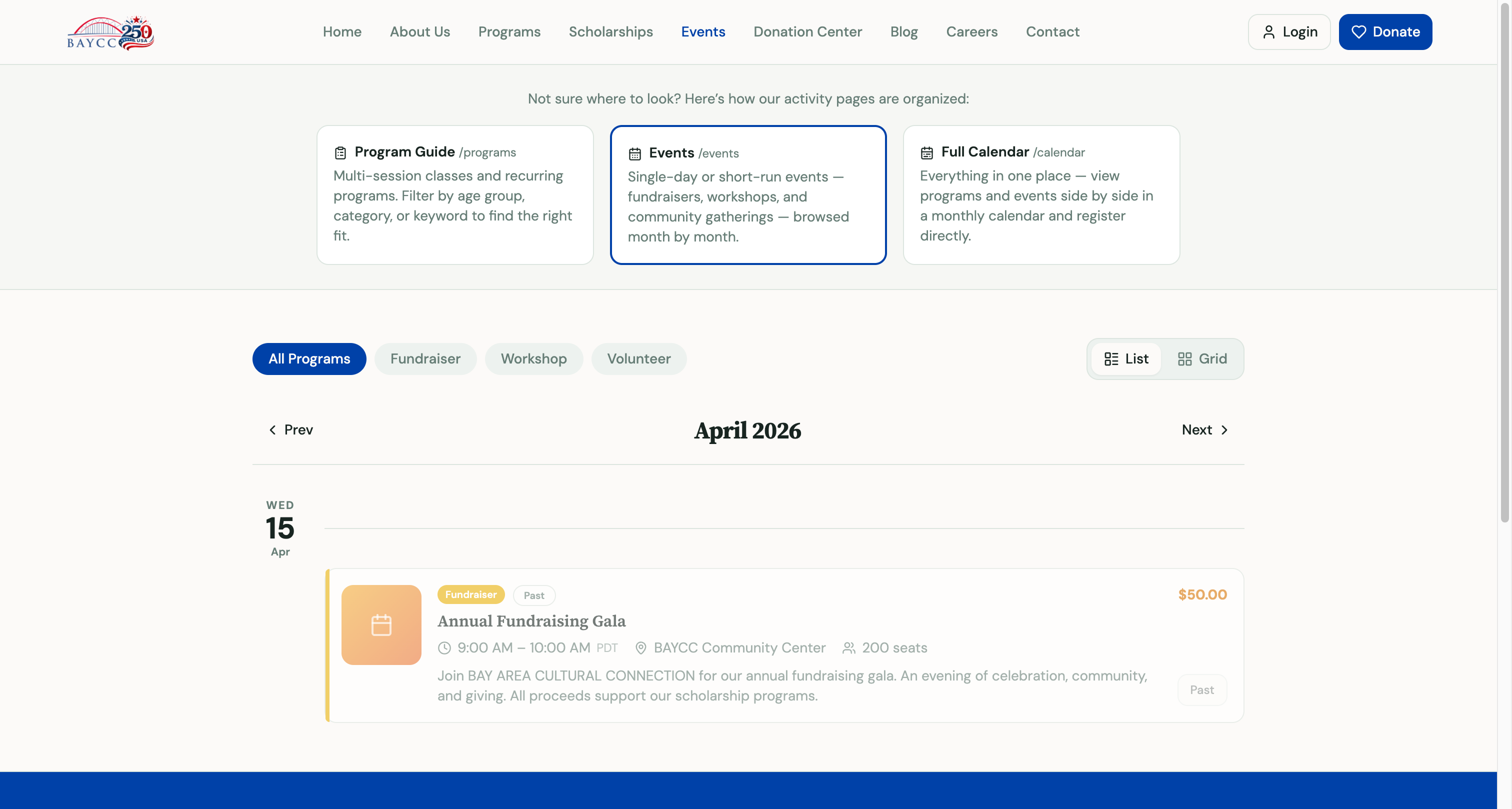
Most sites show events grouped by month with details:
- Date and time.
- Location (in-person or "Online").
- Available seats remaining.
- Description.
- Cost (free or ticket price).
Filter by category (Workshop, Fundraiser, Volunteer) using the buttons at the top, or switch between List and Grid view.
Free events — RSVP
For free events:
- Click the event card to open its detail page.
- Click RSVP.
- Enter name, email, phone (if asked), and any dietary or accessibility notes.
- Click Confirm RSVP.
You'll receive a confirmation email with:
- Event details.
- A QR code (used for check-in at the door).
- "Add to calendar" links for Google, Apple, and Outlook.
Paid events — buying tickets
For ticketed events:
- Click the event to open detail page.
- Choose a ticket tier if there are multiple (General, VIP, Sponsor, etc.).
- Select quantity — most events allow 1–10 per purchase.
- Enter attendee names — one per ticket if attending with others.
- Pay — credit/debit card via Stripe, just like a donation.
You'll receive:
- One confirmation email with all your tickets.
- One QR code per ticket (each attendee can use their own QR).
Add to calendar
Every confirmation email has "Add to calendar" links. Click them to add the event to:
- Google Calendar.
- Apple Calendar (iCal).
- Outlook.
This is the easiest way to remember the event — and you'll get a reminder beforehand if your calendar is configured for that.
Bringing guests
Most events let you register multiple attendees at once. If you need to add a guest later:
- For free events: have your guest RSVP separately under their own name.
- For paid events: contact the event coordinator (info on the event page).
Cancellations
Need to cancel?
- Free events — usually no formal cancellation needed; just don't show up. But it's polite to let the coordinator know if you can't attend, especially for limited-capacity events.
- Paid events — most have a refund policy stated on the event page. Contact the event coordinator to request a refund.
Promo codes
Some events offer discount codes (members, early bird, students). Apply your code at checkout — there's typically a "Have a code?" link near the total.
What to expect at the event
- In-person — bring your QR code (printed or on phone). You'll be checked in at the door, often via QR scan.
- Virtual — the confirmation email will include the meeting link (Zoom, Google Meet, etc.). The link is sent again 1 hour before the event start.
Common questions
Can I transfer my ticket to a friend? Often yes, for free events — just have them say your name at the door. For paid events, contact the coordinator.
The event sold out — is there a waitlist? Usually yes. Click Join Waitlist on the event page; if a seat opens, you'll get a notification email with a few hours to claim it.
Can I get a tax receipt for an event ticket? Only the donation portion (above fair market value of what you received). The receipt will state this clearly.