
Library Hub
The Library is where you manage every collection that powers your public site — blog posts, board members, testimonials, partners, donor reviews, job openings, and annual reports.
It lives under Content → Library in the sidebar.
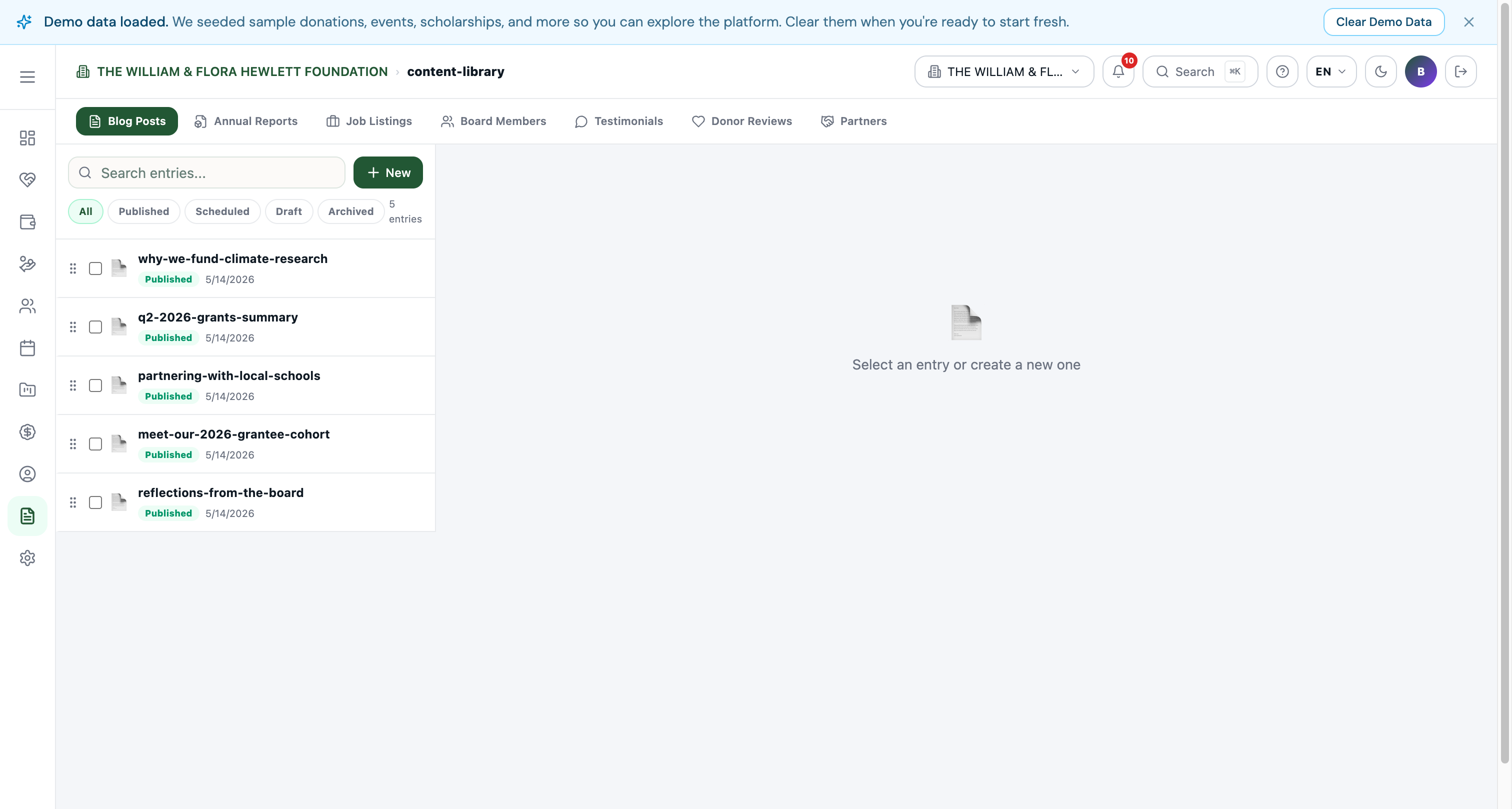
What's inside
Library is a tabbed panel where each tab edits a different content type. Switch tabs without leaving the page.
| Tab | What it manages |
|---|---|
| Blog Posts | Articles published to /blog. Title, slug, hero image, rich-text body, publish status. |
| Annual Reports | PDF + summary entries shown on /about or /annual-reports. |
| Job Listings | Openings published to /careers. Includes description, location, application instructions. |
| Board Members | Officers and directors. Photo, name, title, bio. Shown on /about and "Board" homepage section. |
| Testimonials | Quotes from staff, students, or recipients. Used on the homepage and /testimonials. |
| Donor Reviews | Quotes from donors. Used in the "Reviews" homepage section. |
| Partners | Sponsors and partner organisations. Logo + link. Shown in the "Partners & Sponsors" homepage strip. |
The list view
Each tab shows the entries for that content type:
- Search box at the top — filters by title or slug as you type.
- Status filter chips — All / Published / Scheduled / Draft / Archived.
- New button — opens the entry editor for a new item.
- Entry rows — drag-handle on the left to reorder, checkbox to bulk-select, then the title with status and date.
Click any row to open the entry editor for that item.
The entry editor
The editor is the same shape for every content type in the Library: each "content type" defines a schema (the fields you fill in), and the editor renders that schema. Common fields include:
- Title / Slug — slug feeds the public URL.
- Hero image — used as the card thumbnail and the post header image.
- Rich-text body — TipTap editor with bold/italic/headings, images, embeds (YouTube, Google Maps), tables, and code blocks.
- Status — Draft / Published / Scheduled / Archived.
- Scheduled at — pick a future date for delayed publishing.
- Publish at — the moment the entry appeared publicly.
Custom fields per content type (e.g. Job listings have Location, Apply URL; Board members have Title, Bio) are defined under Settings → Content Types.
Tips
- Drag to reorder. Board members, partners, and other "ordered" collections respect the manual order you set in the list view (used on
/aboutand the homepage strips). - Scheduled posts go live automatically. Set a future Published at date and the entry stays hidden until that moment.
- Bulk actions. Multi-select with checkboxes to publish, archive, or delete in batch.
- Search across tabs. The sidebar's global search (Cmd+K or the menu search box) finds any individual content type by name — typing "Blog Posts" jumps you here with Blog Posts pre-selected.