
Page builder
Where it lives now. The page builder is now organised under Content → Page Hub as a tabbed panel. Home, Landing, About, Landing Site, Hero Slides, Announcement Banners, Pages, Footer, and Page Categories are all tabs there. The walkthrough below still applies — it's the same editor, just one extra click to switch between page types.
Your nonprofit's public website is built and edited entirely inside the admin panel. No HTML, no CSS, no developer required — the Page Builder is a drag-and-drop editor that produces production-ready pages.
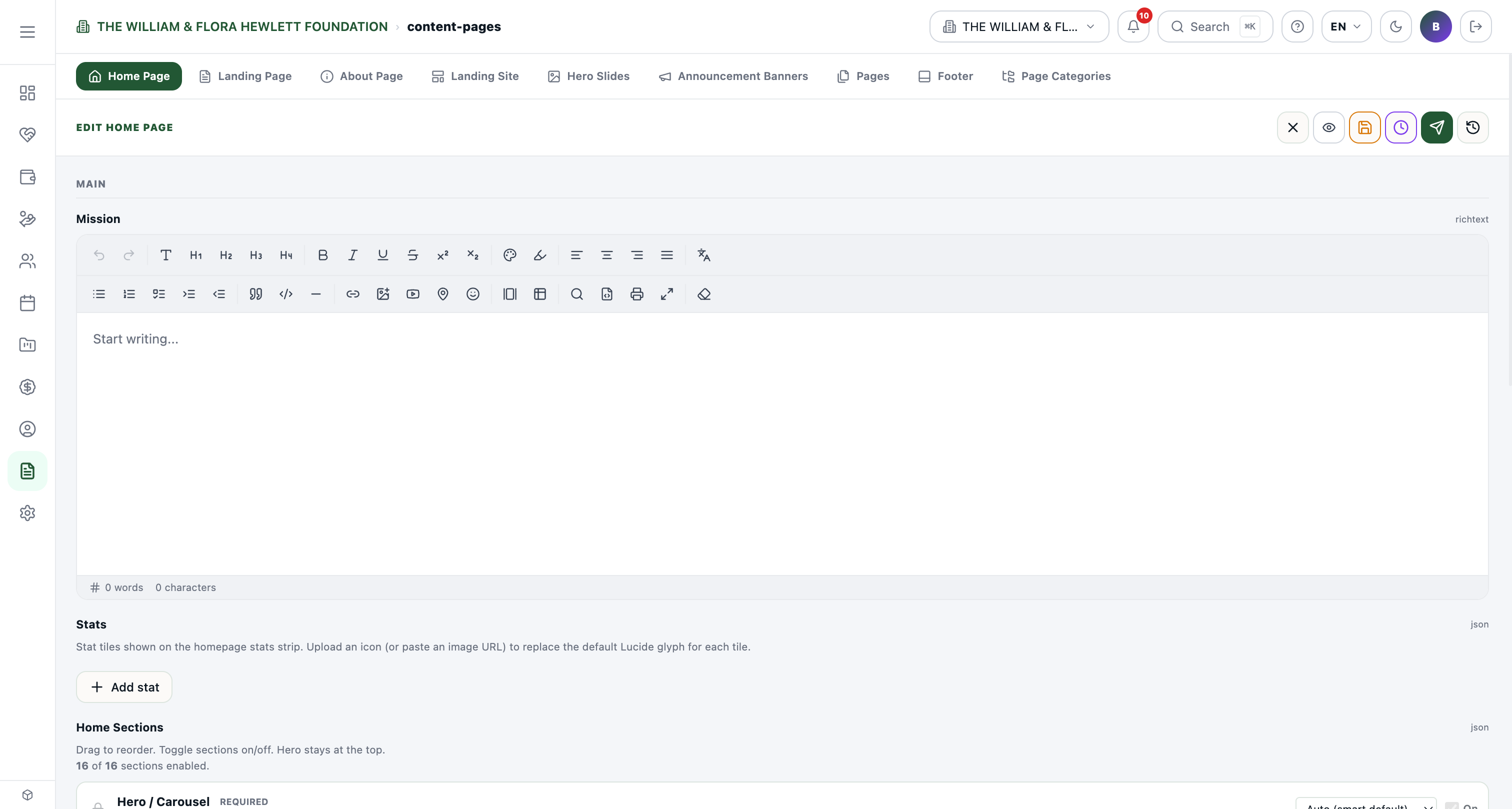
Pages list
The page list shows every page on your public site with:
- Title + URL slug (e.g.
Home /b/home). - Sections — count of building blocks on the page.
- Status — Draft / Published.
- Last modified.
Click any page to open the editor.
The editor
The editor has three panes:
- Left: section library — click to add a section to your page.
- Center: live preview of your page (desktop / tablet / mobile toggle).
- Right: properties panel for the currently selected section.
Section library
Pre-built sections include:
- Hero — full-width banner with headline, subheading, CTA button, optional image.
- Text block — formatted prose.
- Image gallery — grid of images with lightbox.
- Stats — numbered tiles ("12K students served", "$1.2M raised").
- Team grid — board members or staff with photos and bios.
- Testimonials — donor or community quotes.
- Donation widget — embedded donate form.
- Event list — pull from your Events panel.
- Newsletter signup — email capture.
- Map — embedded Google Maps with your address.
- FAQ accordion.
- CTA banner — bottom-of-page call-to-action.
- Custom HTML — for advanced users only.
Editing a section
Click any section to open its property panel:
- Content — text, images, links, button labels.
- Style — alignment, padding, background color (limited to your brand palette).
- Visibility — public, members-only, hidden.
- Behavior — animation on scroll, parallax, etc.
Drag the section by its handle to reorder. Click the trash icon to delete.
Multi-language pages
If you have multiple languages enabled (in Settings → Languages), each page has a tab per language. Translate copy section-by-section. The URL slug is per-language too (/about in English, /hakkimizda in Turkish).
Mobile preview
The editor's responsive toggle shows your page at desktop / tablet / mobile widths. Sections automatically reflow; you can tweak per-breakpoint padding/font sizes if needed.
Publishing
The big Publish button at the top:
- Saves your changes.
- Pushes the new content live to the public site (typically 30–60 seconds).
- Records a snapshot in the page history.
Use Save Draft if you're in the middle of editing and want to come back later without going public.
Page history & rollback
Every publish creates a snapshot. History in the page menu shows every version with timestamps and editor name. Click any version to preview, then Restore to revert. Safe — restoring creates a new version, so you can always undo the rollback.
SEO
Per page:
- Meta title + meta description — what shows in Google.
- Social card image — what shows when shared on Facebook/LinkedIn.
- Canonical URL — for duplicate-content cases.
Filled in from the page properties panel.
Common patterns
- Home → About → Programs → Donate → Contact is the standard 5-page nonprofit site.
- Use Hero for context-setting — visitors decide in 3 seconds; the hero has to communicate who you are.
- Test on mobile — 60%+ of nonprofit traffic is mobile. Don't ship without checking.