
Media library
Where it lives now. The Media Library is part of the Tools Hub under Content → Tools. It's the first tab. Photo Galleries, Social Media, and the AI Assistant share the same hub.
The Media Library is your central asset store: every image, PDF, document, or video uploaded to the platform. Used by Page Builder, content types, email templates, Appearance logos, and content authors browsing for an existing asset.
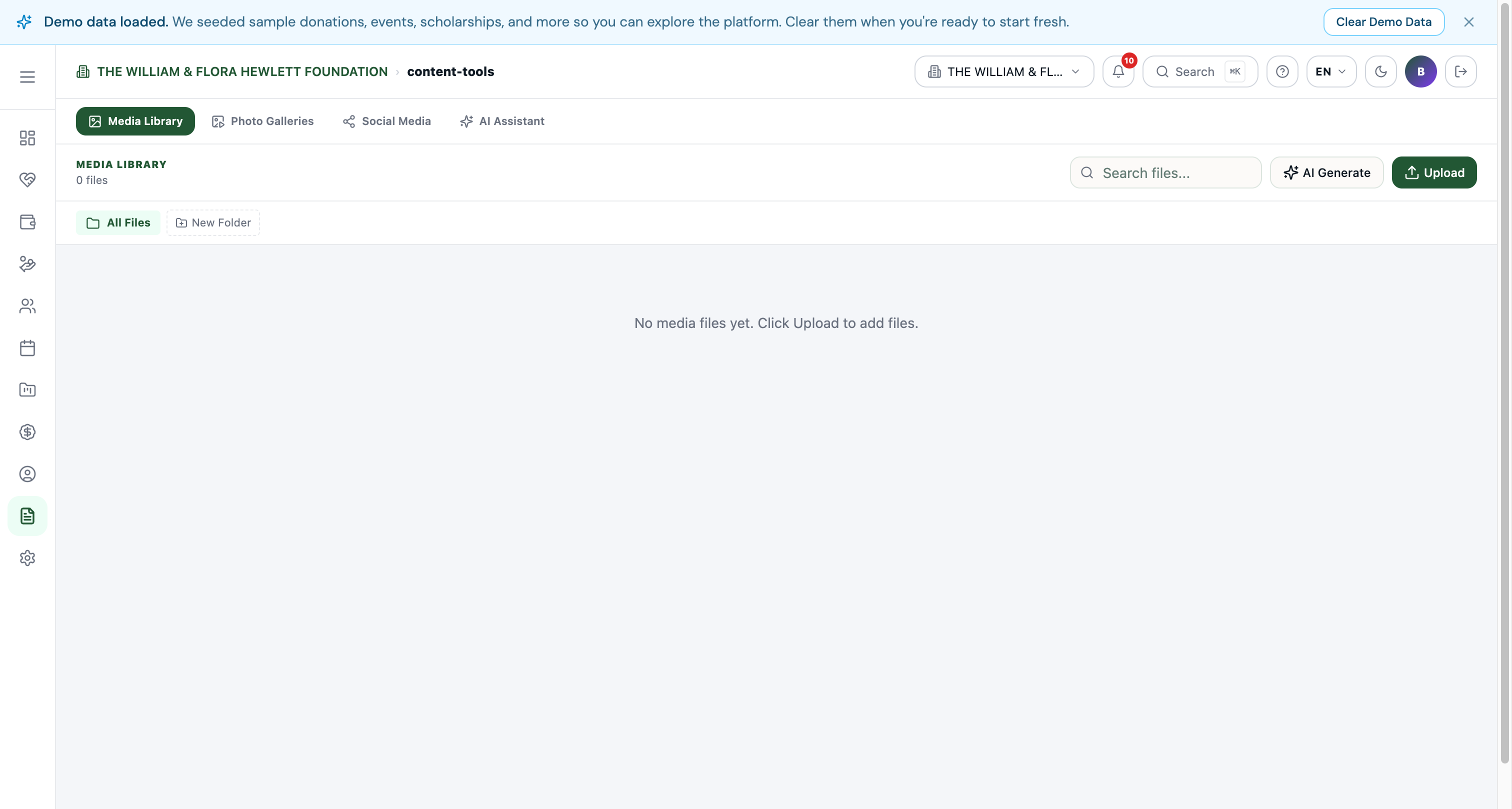
Uploading
Three ways:
- Upload button at the top — picks files from your computer.
- Drag-and-drop anywhere in the library — multi-file support.
- In-context upload — when editing a page or content type, the image picker has an "Upload new" option that drops the file straight into the library and selects it.
File types supported
- Images: PNG, JPG, GIF, SVG, WebP.
- Documents: PDF, DOCX, XLSX, CSV.
- Video: MP4 (small files only — for hero backgrounds).
- Audio: MP3.
Folders
Organize with folders. Common structure:
/logos/— your branding assets./team/— staff and board photos./events/— per-event photo galleries./blog/— blog post hero images./programs/— program photography./grants/— grant attachments (cover letters, signed proposals — rarely public).
Drag files into folders to organize.
Image editing
Every image has an Edit Image action that opens a quick editor:
- Crop (free or fixed aspect ratio).
- Rotate / flip.
- Resize.
- Light filters (brightness, contrast).
- Compress for web (auto).
Edits save as a new version of the file; the original is preserved.
AI image generation
Click AI Generate to create an image from a text prompt. Useful for:
- Hero images when you don't have photography.
- Blog post illustrations.
- Stock-style photos that match your brand.
Generated images are watermark-free and can be used freely on your site.
Copy URL
Every file has a Copy URL action. Use this when:
- Sharing a file in an email or chat.
- Embedding in custom HTML.
- Linking from external systems.
URLs are public unless the file is in a "private" folder.
File details
Click any file to see:
- Filename, size, dimensions (for images), upload date, uploader.
- Where used — which pages, content entries, or emails reference this file.
- Replace — upload a new version while keeping the same URL (useful for swapping a logo without breaking links).
Common patterns
- Optimize before upload — large images slow your site. Aim for <500KB hero images, <200KB content images.
- Use SVG for logos — scales perfectly and stays small.
- Keep originals in a "raw" folder — upload edited versions for production use, store originals for re-edits later.